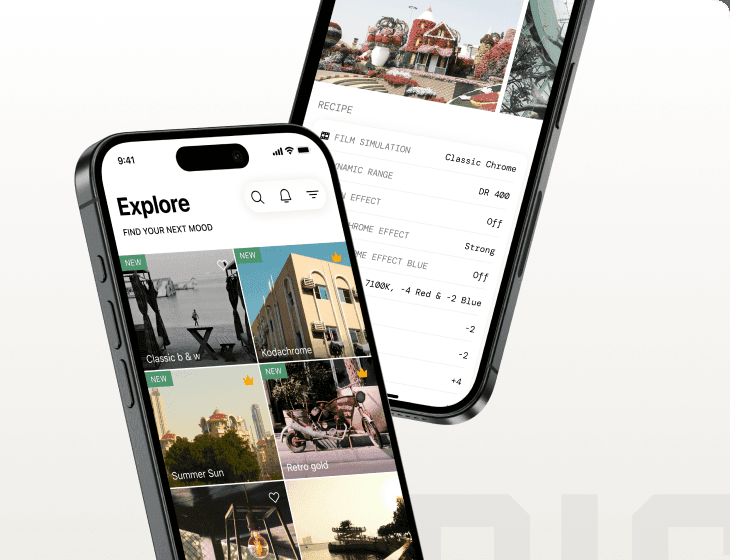
How to add a film simulation recipe to your Fujifilm camera
A recipe is just a list of in-camera settings. Save one to a custom slot once, and every JPEG lands already looking the part — finished film tones, no laptop, no Lightroom. Here's exactly how to do it, even if it's your first Fujifilm.
What you'll need first
Any X-series or GFX Fujifilm camera, set to produce a JPEG (shoot JPEG, or RAW+JPEG if you want a raw backup), and a recipe to copy. If you don't have one yet, the quickest path is to find a recipe tested for your exact camera — that way every setting it lists is one your body actually has. If any term below is unfamiliar, the glossary explains every setting in plain English.
Why recipes use custom slots
Fujifilm cameras let you save a complete set of image-quality settings into a numbered custom slot — labelled C1 to C7, though some bodies have fewer. Loading a recipe means entering its values once and saving them to a slot. After that, switching the entire look is a single button press, and you never have to re-enter the numbers. Think of each slot as a saved film stock you can swap in an instant.
Step by step: loading a recipe
- 01
Open the Image Quality (IQ) menu
Press MENU/OK, go to the Image Quality (IQ) tab, and scroll to EDIT/SAVE CUSTOM SETTING. Pick an empty custom slot — C1 through C7, depending on your body.
- 02
Set the film simulation
Set the base FILM SIMULATION to the one the recipe names (for example Classic Chrome or Classic Negative). Every other value is tuned around this base, so set it first.
- 03
Enter the Dynamic Range and White Balance
Set Dynamic Range (DR100/200/400), then White Balance — both the type (Auto, a Kelvin value or a preset) and the Red/Blue shift. The white-balance shift carries much of the recipe's colour character.
- 04
Dial in the tone curve and colour
Enter Highlight, Shadow, Color, Sharpness, Noise Reduction and Clarity exactly as listed. These shape the recipe's contrast and saturation.
- 05
Add grain and the Color Chrome effects
Set the Grain Effect (strength and size), Color Chrome Effect and, if your camera has it, Color Chrome FX Blue. Skip any control your body doesn't offer — that's expected on older sensors.
- 06
Set ISO and exposure compensation
Set the Auto-ISO ceiling and any exposure-compensation bias the recipe suggests. On most Fujifilm bodies these live outside the custom slot, so you may need to set them per shoot.
- 07
Save the slot and shoot
Save the custom setting. Select that slot any time to shoot finished film-look JPEGs straight out of camera — no editing required.
A note on the settings that vary by camera
Newer sensor generations add controls older ones don't have — Color Chrome FX Blue, Clarity, Grain Size, and simulations like Classic Negative, Nostalgic Neg. and Reala Ace. If a recipe lists a setting your camera doesn't offer, skip it; the look will still come through. To avoid the guesswork entirely, browse by your sensor generation so every recipe you see is one your body can shoot in full.
After you've saved it
Select the slot, go shoot, and review the JPEGs on the back of the camera — they're finished. Remember that ISO and exposure compensation usually live outside the slot, so set those to taste for the light you're in. The best way to learn what a recipe does is to shoot the same scene a few ways and compare. When you're ready for more, the library is sorted by the film stock a look emulates, film simulation, and what you're shooting.